
Download Shimo – Secure, Flexible VPN Client for Mac
Overview of Shimo – Why It Stands Out in the Mac VPN Landscape
Shimo is a flexible VPN client designed exclusively for macOS, offering support for a wide range of VPN protocols, including Cisco, L2TP, PPTP, OpenVPN, and IPSec. Since its inception in 2006, Shimo has been built to replace the limited graphical user interface that shipped with Cisco’s native VPN client, providing power users and businesses with granular control over connection preferences, authentication methods, and routing policies. The application delivers a modern, polished UI that integrates seamlessly with macOS’s native look and feel, making the process of establishing a secure tunnel feel as effortless as launching any other Mac app.
Beyond its protocol breadth, Shimo differentiates itself through several key capabilities. It can import existing VPN profiles from .pcf or .mobileconfig files, automatically translate them into Shimo’s format, and store them securely in the macOS Keychain. The client also supports split tunneling, allowing users to direct only specific traffic through the VPN while keeping other traffic on the local network—a crucial feature for developers who need simultaneous access to corporate resources and public internet services. Additionally, Shimo’s advanced logging and diagnostics tools empower IT administrators to troubleshoot connection issues without needing to dive into console logs manually.
While the free version imposes a time‑limited session and occasional upgrade prompts, the paid edition removes these restrictions and unlocks premium features such as automatic driver updates, unlimited connections, and priority support. Whether you are a remote worker needing reliable access to a corporate Cisco VPN or a privacy‑conscious user seeking a versatile OpenVPN solution, Shimo delivers a secure, user‑friendly experience that bridges the gap between enterprise‑grade functionality and everyday usability on macOS.
Core Features That Make Shimo a Must‑Have VPN Tool for macOS
- Broad Protocol Support: Native compatibility with Cisco AnyConnect, L2TP/IPSec, PPTP, OpenVPN, IKEv2, and more.
- Profile Import & Export: Seamlessly import .pcf, .mobileconfig, or .ovpn files and export Shimo profiles for backup or distribution.
- Split Tunneling: Choose which applications or IP ranges travel through the VPN, preserving local bandwidth for non‑secure traffic.
- Automatic Driver Updates: The free version prompts for system password to install and update low‑level drivers, ensuring maximum protocol compatibility.
- Keychain Integration: Secure storage of usernames, passwords, and shared secrets in macOS Keychain, reducing the risk of credential leakage.
- Advanced Logging & Diagnostics: Real‑time connection logs, packet captures, and error reporting tools for IT teams.
- Customizable UI Themes: Light and dark mode support, with optional custom branding for enterprise deployments.
- Multi‑Profile Management: Organize unlimited VPN profiles, assign icons, and toggle connections with a single click.
- Automatic Reconnect: Built‑in watchdog that restores the VPN tunnel if the network drops or the session expires.
- Enterprise Ready: Supports SAML, LDAP, and two‑factor authentication mechanisms for corporate environments.
Each feature is engineered to balance security with simplicity. For example, the split tunneling engine leverages macOS’s Network Extension framework, allowing Shimo to apply per‑application routing rules without requiring kernel extensions. This design not only improves system stability but also ensures compliance with Apple’s security policies, a vital consideration for users running macOS Catalina or later.
In practice, these capabilities translate into a smoother workflow. A remote developer can import an OpenVPN configuration, enable split tunneling for development tools, and connect with a single click—all while the app quietly updates its drivers in the background. Meanwhile, a corporate user relying on Cisco AnyConnect can enjoy a richer set of preferences—such as automatic DNS push and group‑policy enforcement—that the native Cisco client lacks on macOS.
Step‑by‑Step Installation & Usage Guide for macOS Users
Downloading and Installing Shimo
1. Visit the official Shimo website and click the Download for macOS button. The installer is a standard .dmg package, signed by the developer to guarantee authenticity.
2. Open the downloaded .dmg file and drag the Shimo icon into the Applications folder. macOS will prompt you to confirm the move; click Copy.
3. Launch Shimo from the Applications folder. The first launch triggers a security prompt asking for your system password. This is required to install low‑level networking drivers that enable support for additional VPN protocols. Enter your password and click OK.
4. After the drivers install, Shimo will restart automatically. You will see the main dashboard displaying a Profiles tab and a status bar that reflects the current connection state.
Creating Your First VPN Profile
1. Click the + button in the Profiles pane to add a new connection.
2. Choose the protocol you need from the drop‑down menu (e.g., Cisco, OpenVPN, IKEv2). If you have an existing configuration file, click Import and select the file; Shimo will populate the required fields automatically.
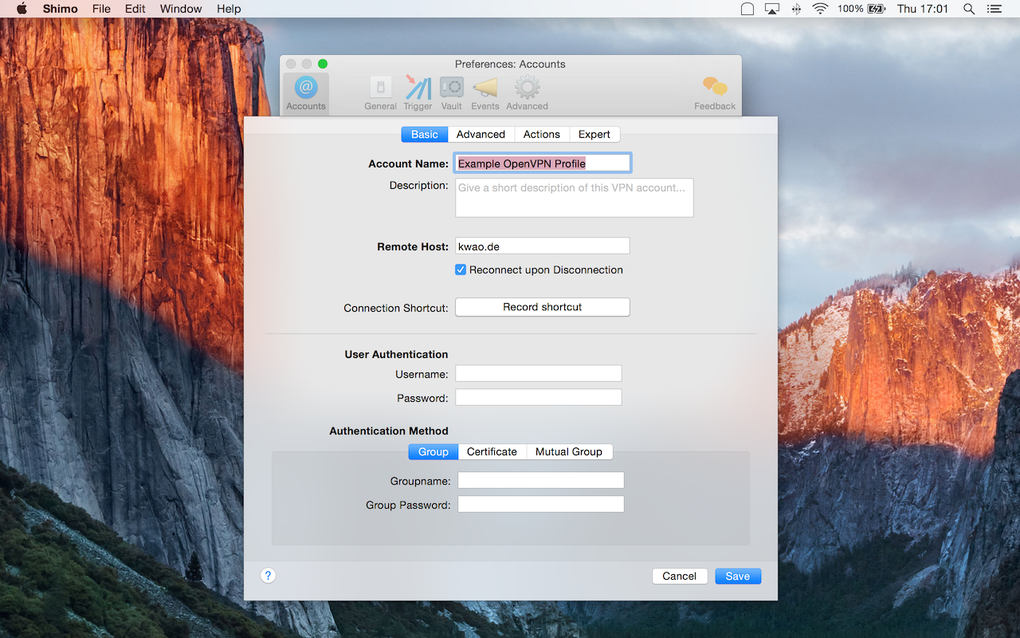
3. For a manual Cisco setup, fill in the following details:
- Server address (hostname or IP)
- Username and password
- Group name and group password (or shared secret)
4. Optionally, expand the Advanced section to tweak DNS settings, enable split tunneling, or configure a custom DNS server.
5. Click Save. The new profile appears in the list with a status indicator showing Disconnected.
Connecting and Managing Sessions
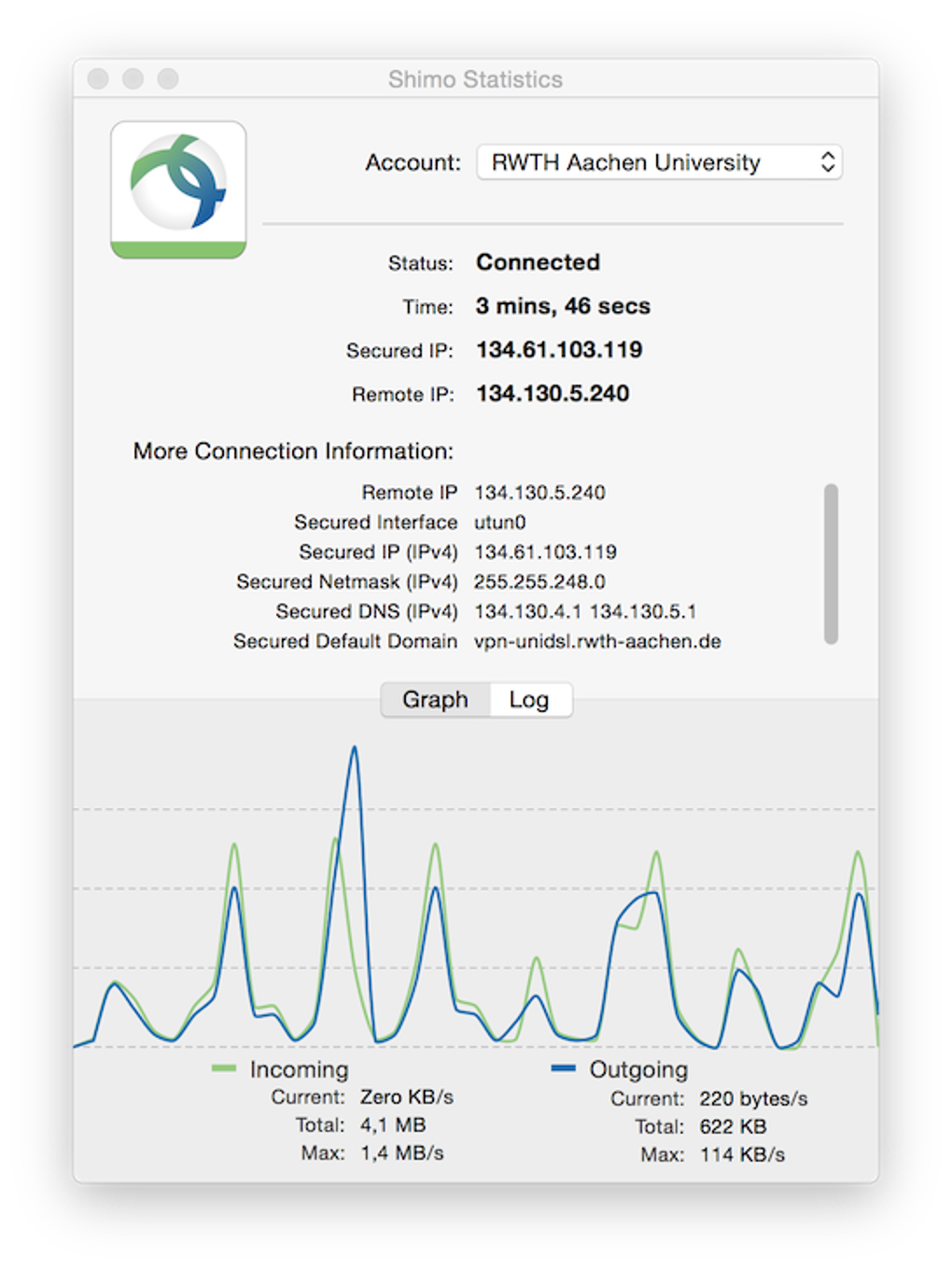
To initiate a VPN tunnel, simply double‑click the profile or select it and press the Connect button. Shimo will transition through Connecting, Securing, and finally Connected states. If the connection fails, consult the Log tab for detailed error messages; common issues include incorrect credentials, firewall blocks, or outdated drivers.
Shimo also supports automatic reconnection. Enable the Reconnect on network change toggle in Preferences > General to have the app restore the VPN whenever you switch Wi‑Fi networks or resume from sleep.
Finally, to disconnect, click the Disconnect button or right‑click the status icon in the macOS menu bar and choose Quit VPN. The app will cleanly terminate the tunnel, ensuring no lingering routes remain.
Compatibility, Pros & Cons – What You Need to Know Before You Download
Shimo is built for macOS 10.12 (Sierra) and later, including the latest macOS Ventura and Sonoma releases. The application leverages Apple’s Network Extension framework, which means it runs natively on Intel‑based Macs as well as Apple Silicon (M1, M2, and newer) without requiring Rosetta translation. Compatibility with older versions such as Snow Leopard (10.6) is limited; users may experience connection stalls at the “Securing” stage, especially with Cisco protocols, due to deprecated driver support.
Pros
- Extensive protocol library – eliminates the need for multiple VPN apps.
- Native macOS integration – dark mode, menu‑bar status, and Keychain usage.
- Advanced routing options – split tunneling and per‑application rules.
- Easy profile import – supports .pcf, .ovpn, and .mobileconfig out of the box.
- Regular driver updates – keeps the client compatible with new VPN standards.
- Enterprise‑ready authentication – SAML, LDAP, and 2FA support.
Cons
- Free version imposes session time limits and periodic upgrade nags.
- Occasional compatibility quirks with legacy Cisco VPN servers on older macOS releases.
- Initial driver installation requires administrator privileges, which may be restricted in managed corporate environments.
- Advanced settings can be overwhelming for non‑technical users.
- Pricing for the full version is a one‑time purchase; subscription‑based alternatives may offer more frequent feature releases.
Overall, Shimo’s strengths lie in its flexibility and macOS‑centric design. If you operate primarily on modern macOS versions and need a single client to manage diverse VPN connections, the pros far outweigh the cons. For users on very old systems or those who require a completely ad‑free experience without any upfront cost, a competitor may be more appropriate.
Frequently Asked Questions About Shimo
Is Shimo free to use, and what are the limitations of the free version?
Shimo offers a free tier that allows unlimited profile creation but limits each VPN session to a few hours. After the limit is reached, a nag screen prompts you to upgrade to the paid version, which removes session caps and adds premium features such as automatic driver updates and priority support.
Can I import my existing Cisco VPN configuration into Shimo?
Yes. Shimo can import Cisco .pcf files directly. During the import process, the application parses the server address, group name, shared secret, and authentication details, then stores them securely in the Keychain. If you prefer manual entry, you can also create a Cisco profile by entering those parameters yourself.
Does Shimo support split tunneling, and how do I enable it?
Split tunneling is a core feature of Shimo. To enable it, open the profile’s Advanced tab, check the “Enable Split Tunneling” option, and specify the apps or IP ranges that should bypass the VPN. Changes take effect the next time you connect.
Will Shimo work on Apple Silicon Macs without Rosetta?
Absolutely. Shimo includes a native Apple Silicon binary, so it runs natively on M1, M2, and newer chips. This ensures optimal performance and lower power consumption compared to Rosetta‑translated applications.
How does Shimo store my VPN credentials securely?
All usernames, passwords, and shared secrets are saved in the macOS Keychain, which encrypts the data using the user’s login password. Shimo never writes credentials to plain‑text files, and you can view or delete them directly from the Keychain Access utility.
Conclusion – Should You Download Shimo Today?
Shimo delivers a compelling blend of enterprise‑grade features and a consumer‑friendly interface, making it one of the most versatile VPN clients available for macOS. Its ability to handle multiple protocols, support split tunneling, and integrate tightly with the macOS Keychain sets it apart from the native Cisco client and many generic VPN apps. While the free version’s session limits may be a nuisance for power users, the one‑time purchase price of the full version is reasonable given the breadth of functionality you receive.
If you run a modern Mac (macOS Sierra or later) and need a single solution to manage Cisco, OpenVPN, and newer IKEv2 connections, Shimo is an excellent choice. The occasional hiccup with legacy Cisco servers on older macOS releases is a minor drawback that can be mitigated by updating the OS or opting for the paid version, which includes more frequent driver updates.
Ready to experience a smoother, more controlled VPN workflow? Download Shimo now and take advantage of its free trial to see how it fits your security needs. Whether you’re a remote employee, a freelancer, or an IT administrator, Shimo gives you the tools to stay connected securely without sacrificing macOS’s elegant user experience.







